troubleshooting
Fix spreadsheet sharing access errors
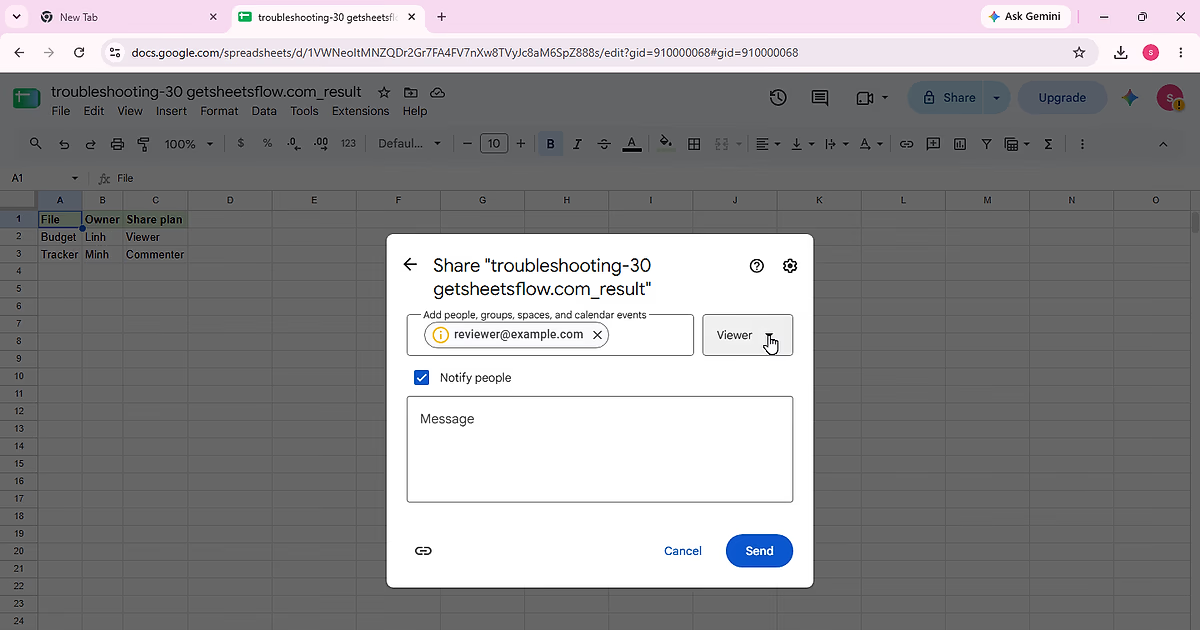
Diagnose Google Sheets sharing failures by checking who has access, General access, and the recipient role without broadening permissions unnecessarily.
11 min readRead guide ↗
Bite-sized guides for real spreadsheet problems.
Diagnose Google Sheets sharing failures by checking who has access, General access, and the recipient role without broadening permissions unnecessarily.
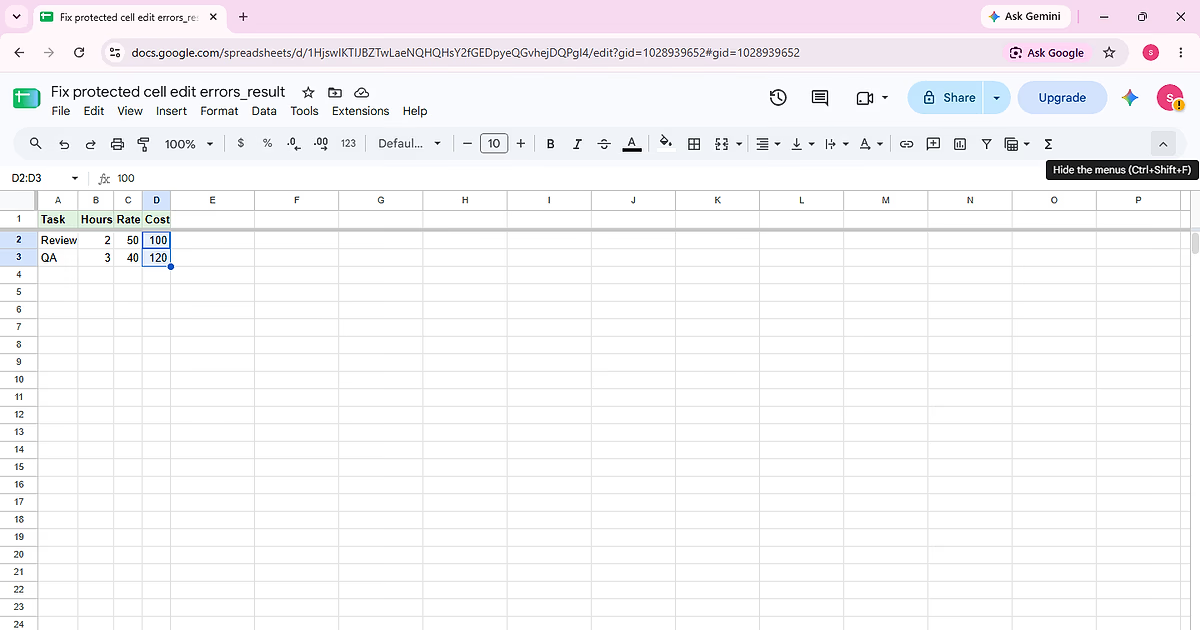
Diagnose why a protected Google Sheets cell cannot be edited, confirm the protected range, and choose the right permission fix without removing protection from unrelated cells.
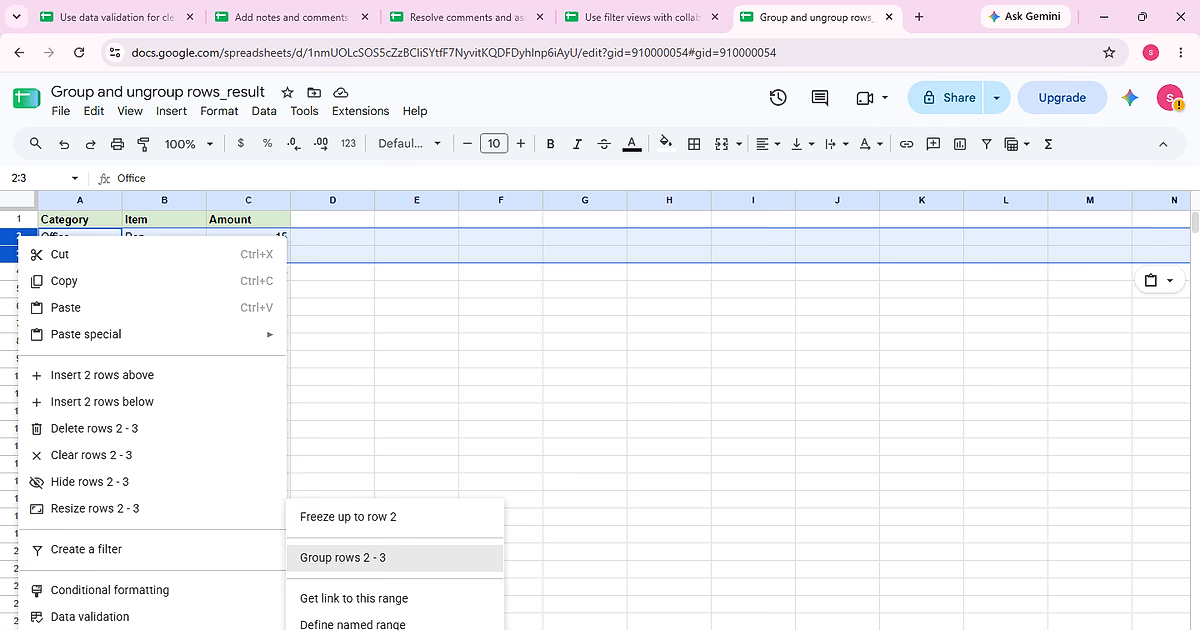
Complete “Group and ungroup rows” using the visible Category, Item, Amount sample so each action and the final state can be checked against the source data.
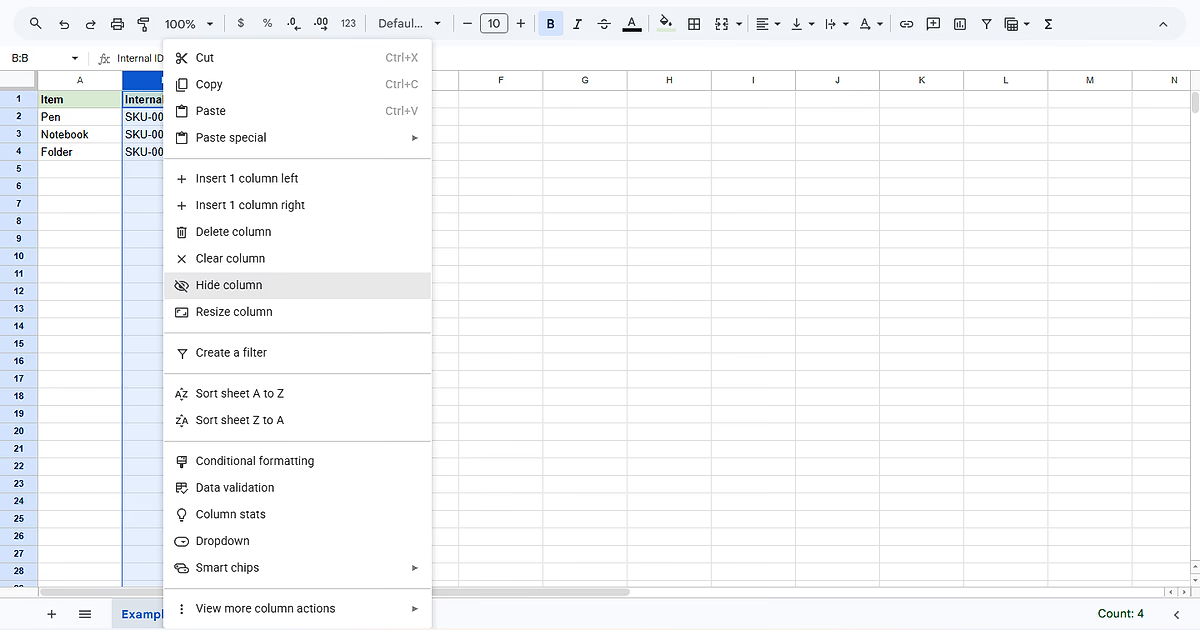
Complete “Hide and unhide rows and columns” using the visible Item, Internal ID, Status sample so each action and the final state can be checked against the source data.
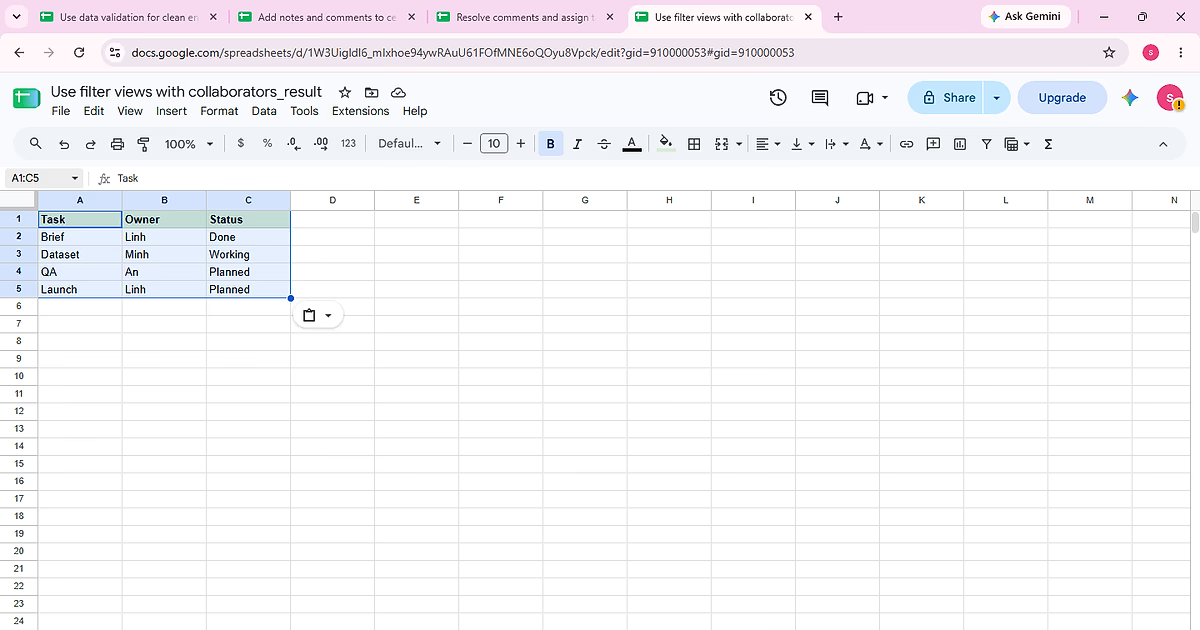
Complete “Use filter views with collaborators” using the visible Task, Owner, Status sample so each action and the final state can be checked against the source data.
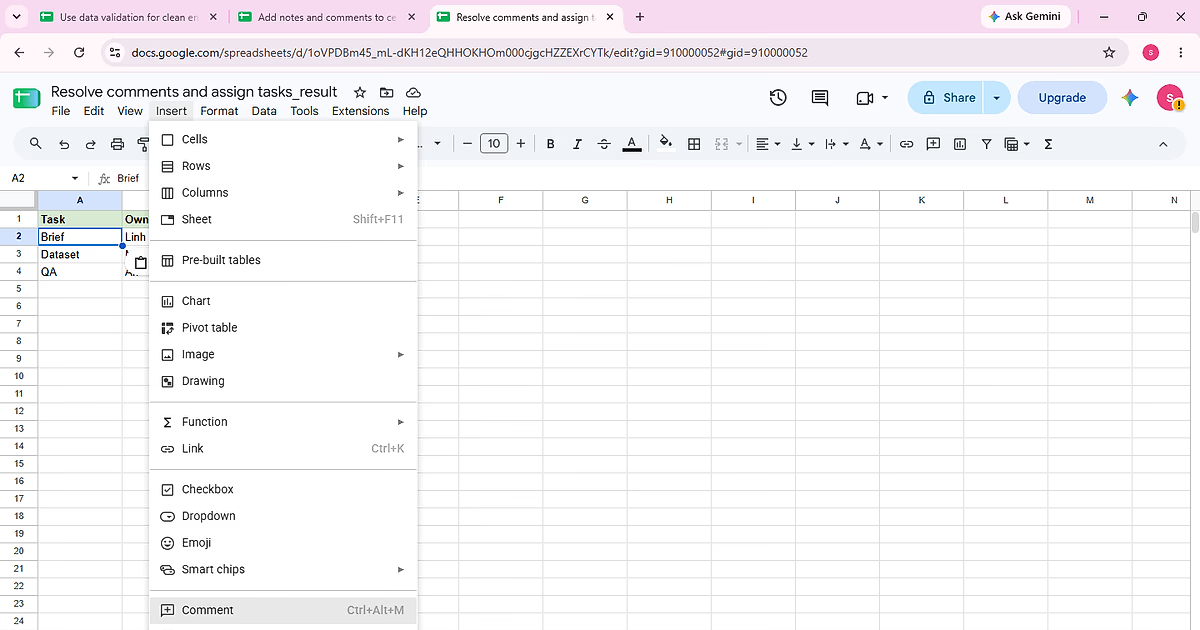
Complete “Resolve comments and assign tasks” using the visible Task, Owner, Status sample so each action and the final state can be checked against the source data.
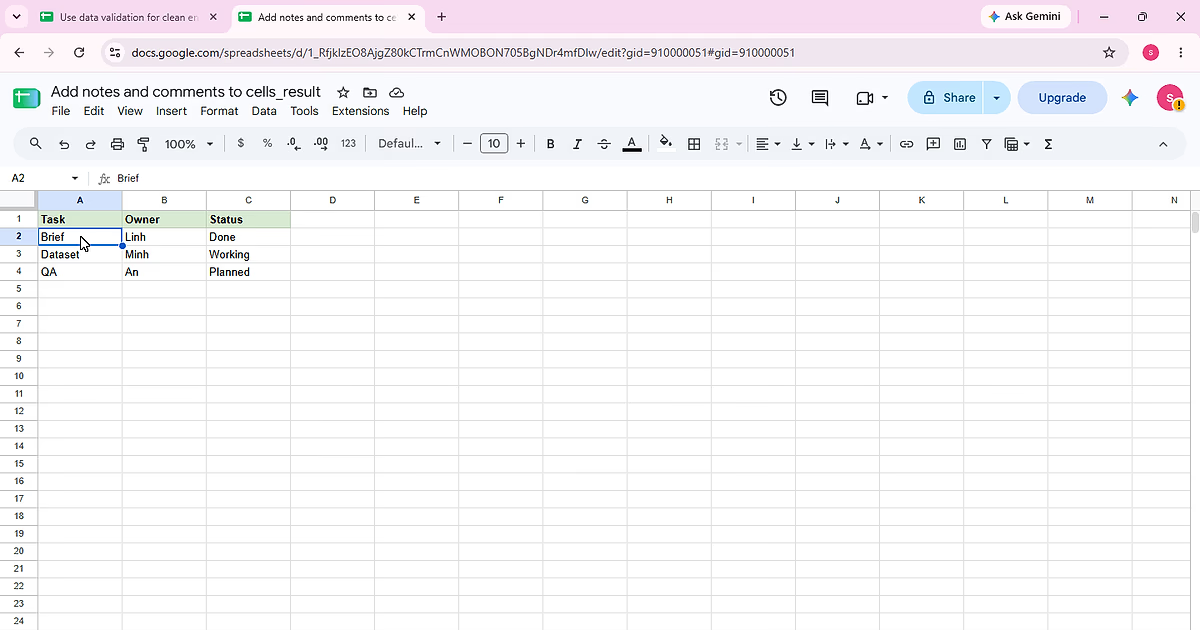
Complete “Add notes and comments to cells” using the visible Task, Owner, Status sample so each action and the final state can be checked against the source data.
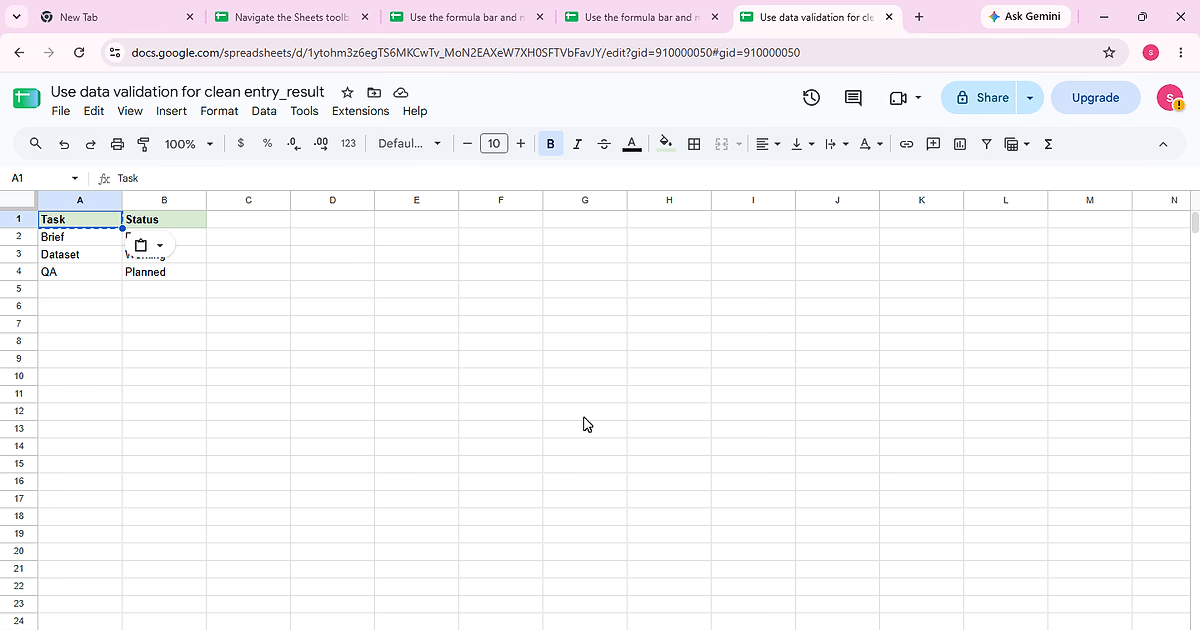
Complete “Use data validation for clean entry” using the visible Task, Status sample so each action and the final state can be checked against the source data.
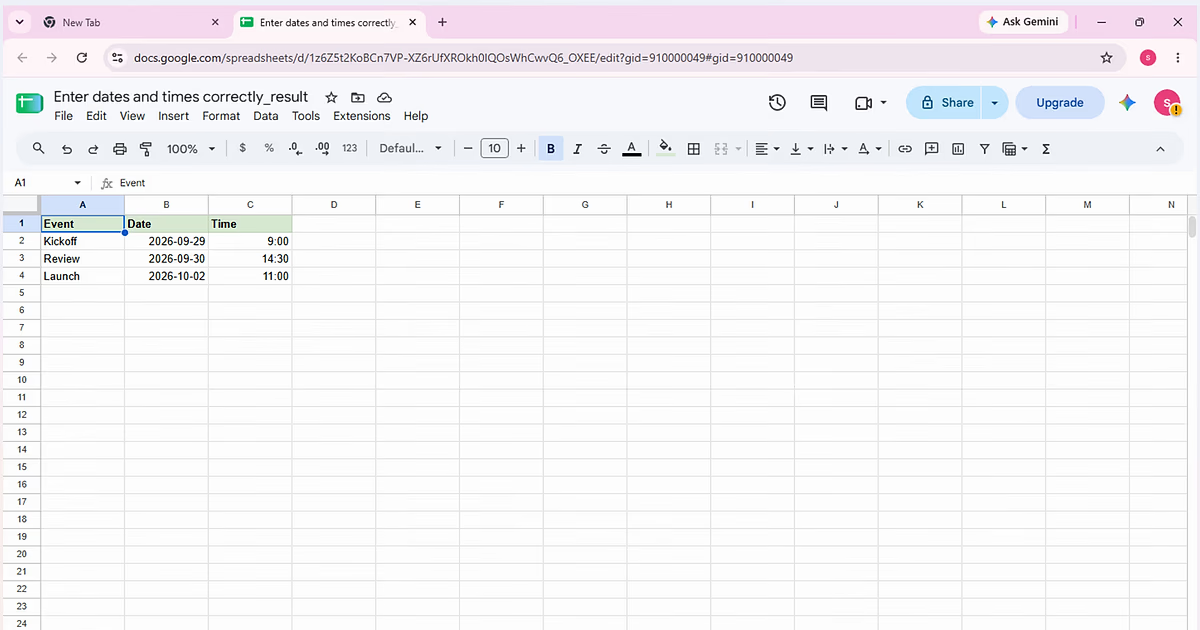
Complete “Enter dates and times correctly” using the visible Event, Date, Time sample so each action and the final state can be checked against the source data.
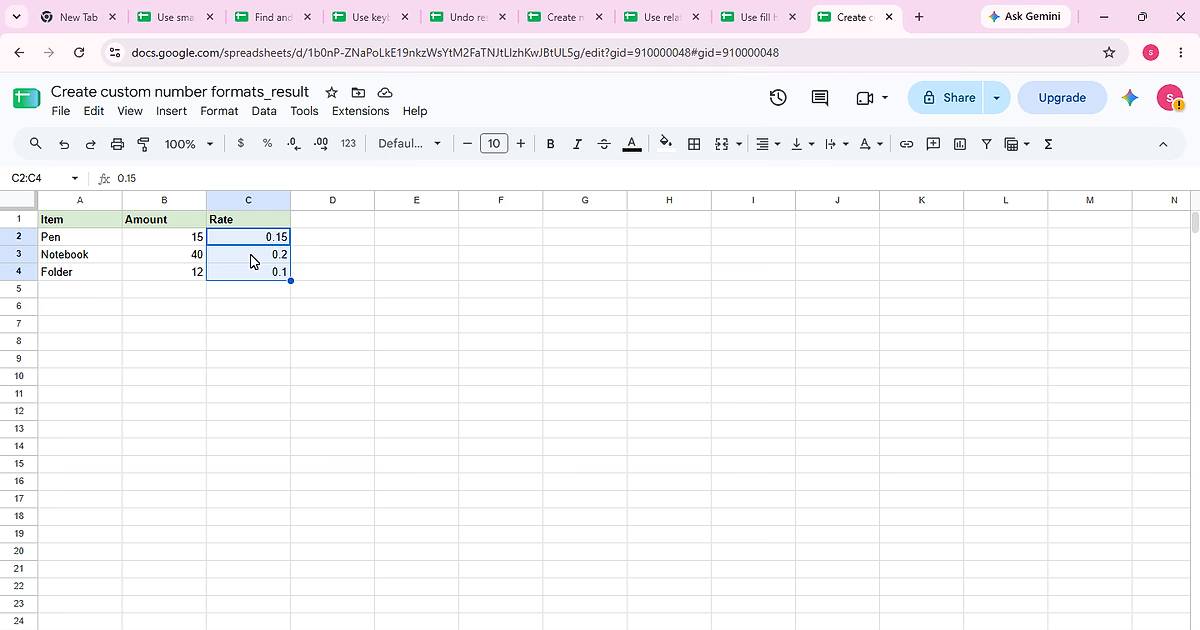
Complete “Create custom number formats” using the visible Item, Amount, Rate sample so each action and the final state can be checked against the source data.
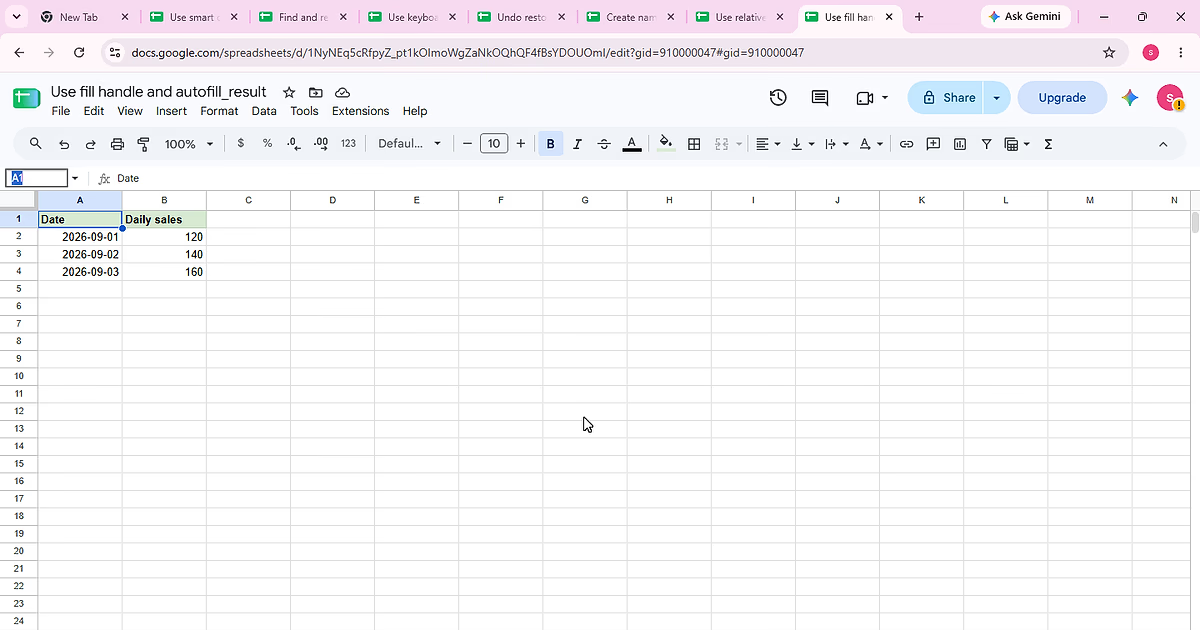
Complete “Use fill handle and autofill” using the visible Date, Daily sales sample so each action and the final state can be checked against the source data.
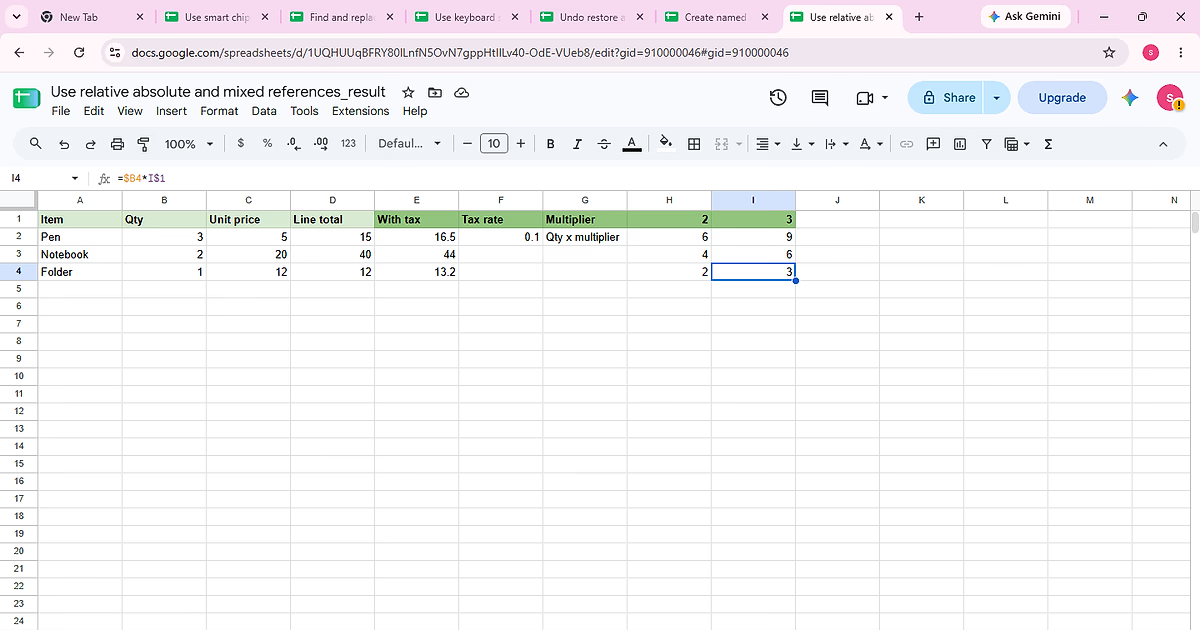
Complete “Use relative absolute and mixed references” using the visible Item, Qty, Unit price, Line total sample so each action and the final state can be checked against the source data.
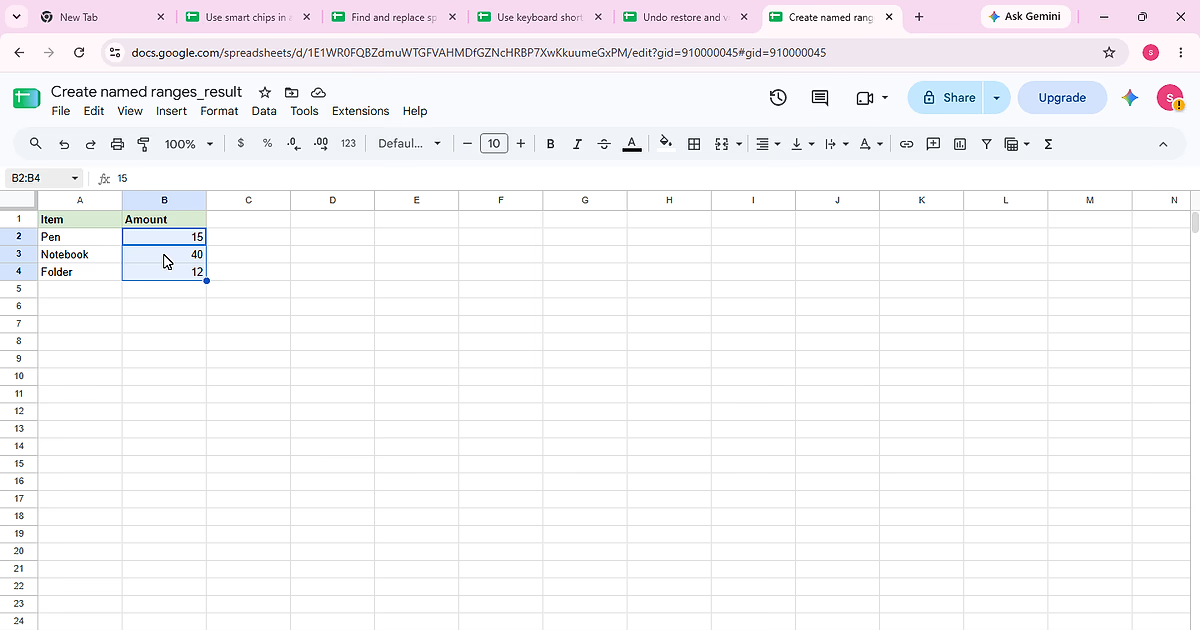
Complete “Create named ranges” using the visible Item, Amount sample so each action and the final state can be checked against the source data.
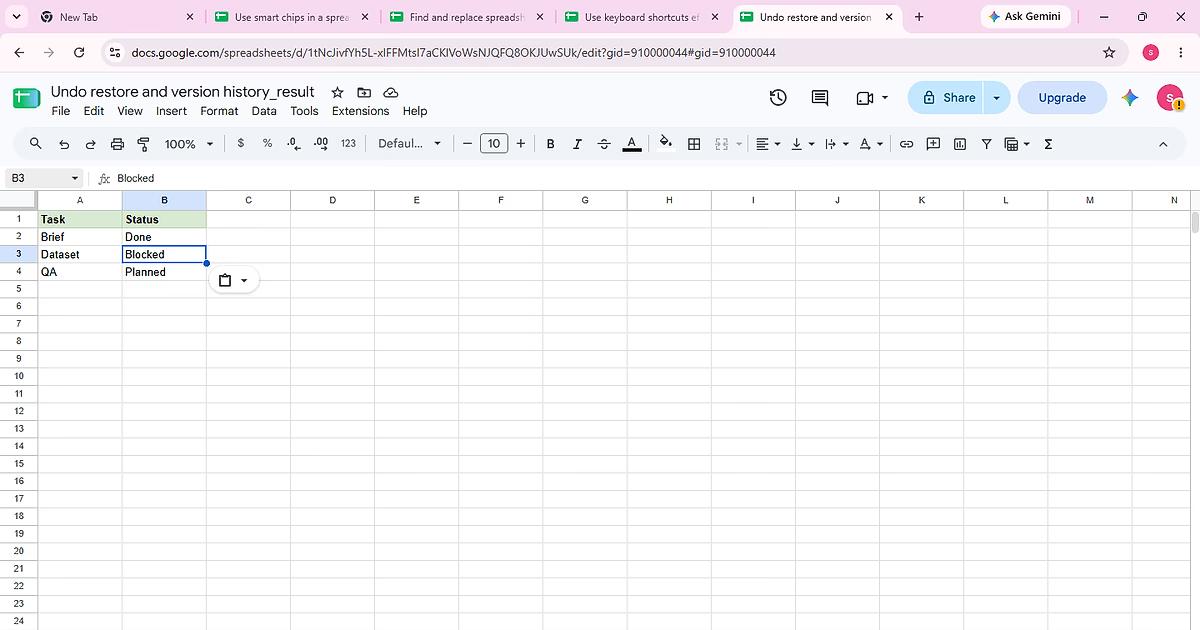
Complete “Undo restore and version history” using the visible Task, Status sample so each action and the final state can be checked against the source data.
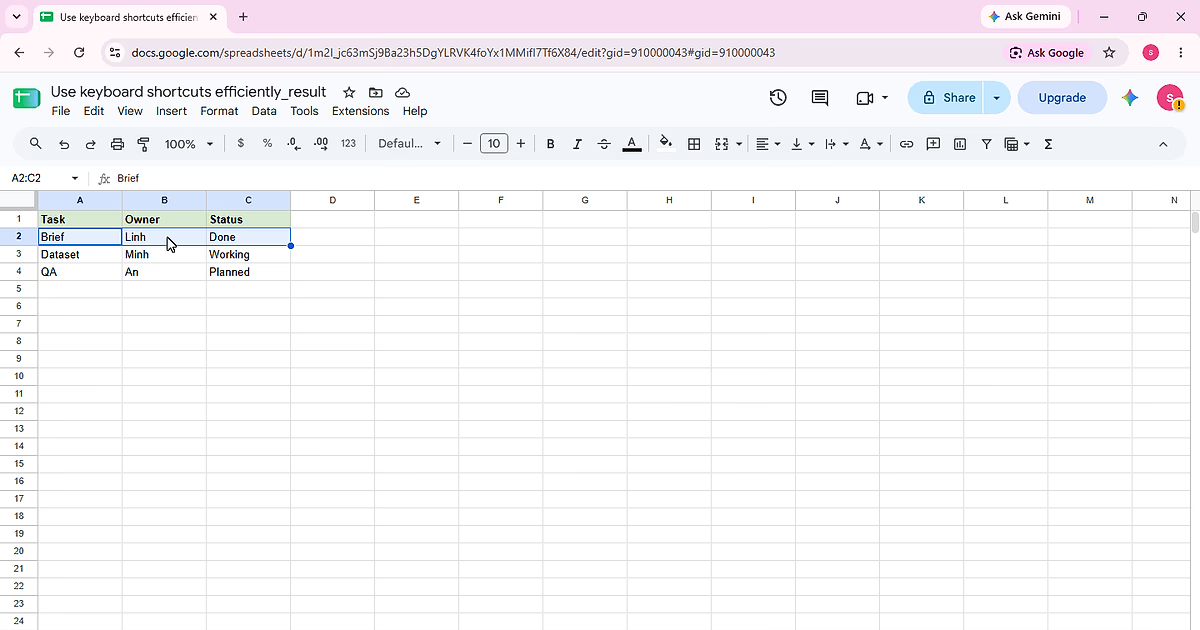
Complete “Use keyboard shortcuts efficiently” using the visible Task, Owner, Status sample so each action and the final state can be checked against the source data.
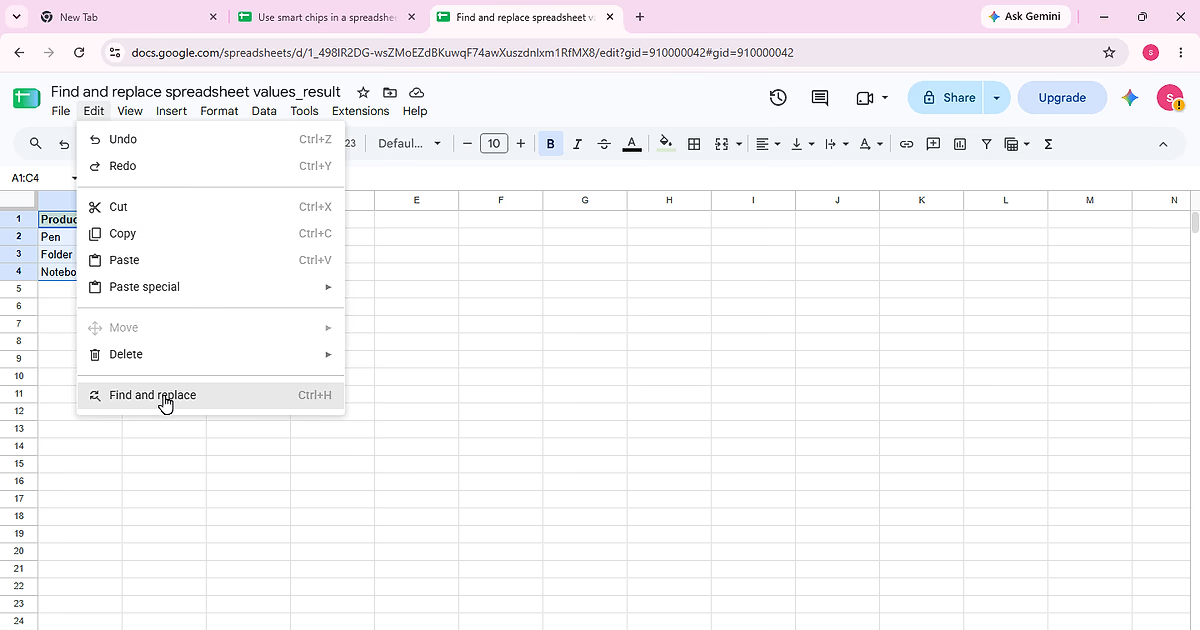
Find a specific value in the sample table and replace only the intended matches while keeping unrelated cells unchanged.
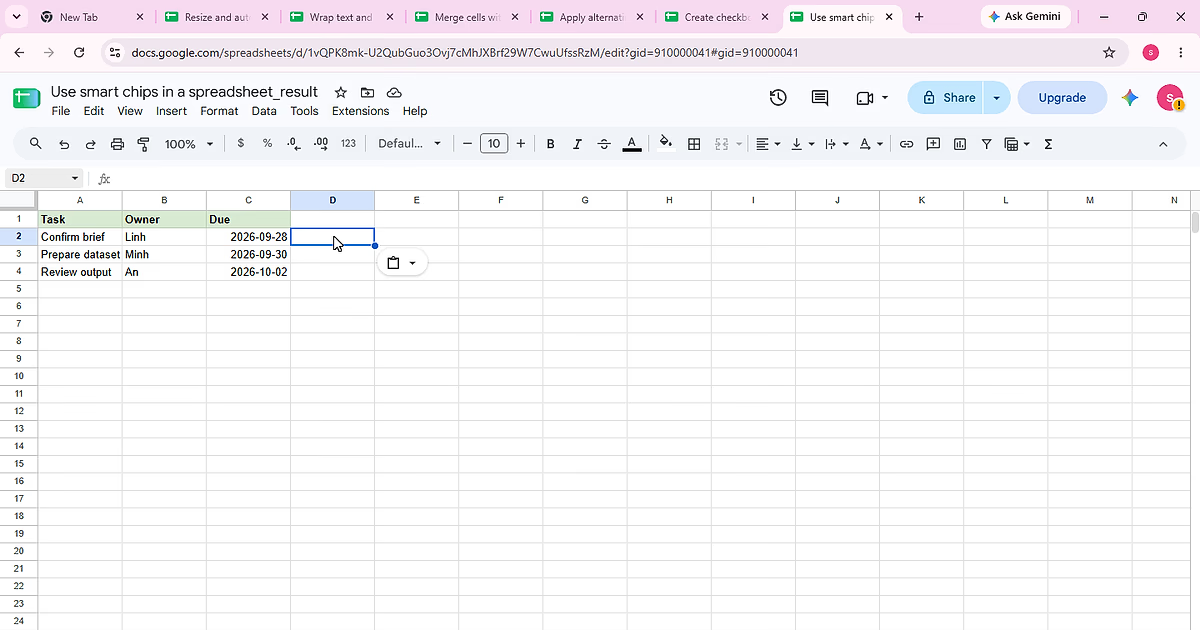
Complete “Use smart chips in a spreadsheet” using the visible Task, Owner, Due sample so each action and the final state can be checked against the source data.
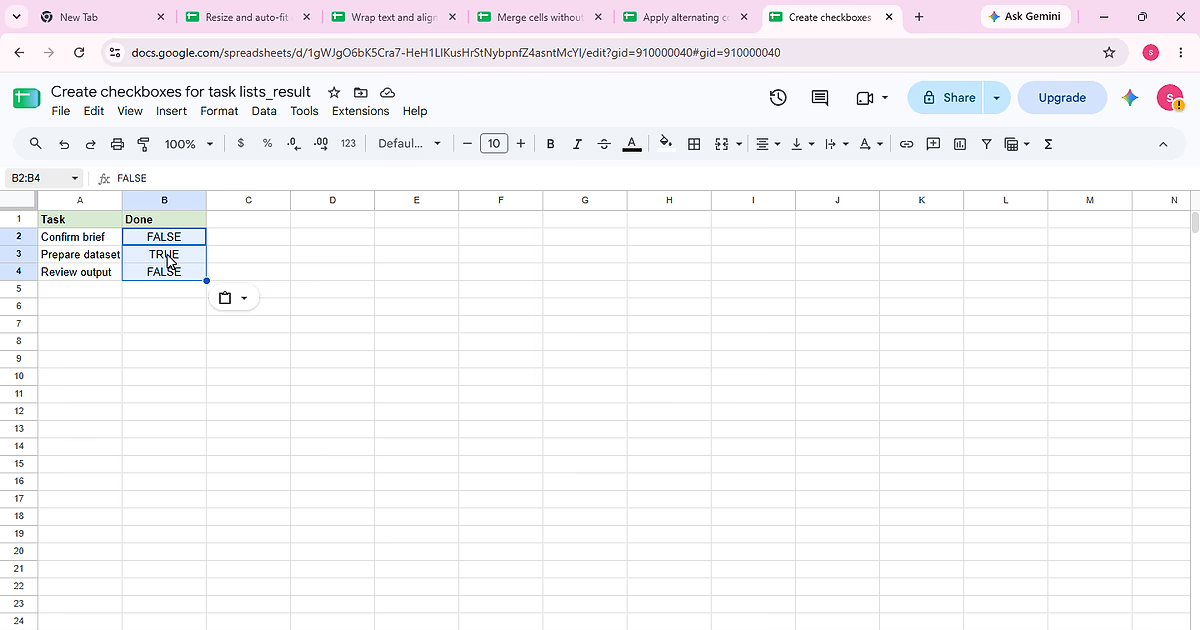
Complete “Create checkboxes for task lists” using the visible Task, Done sample so each action and the final state can be checked against the source data.
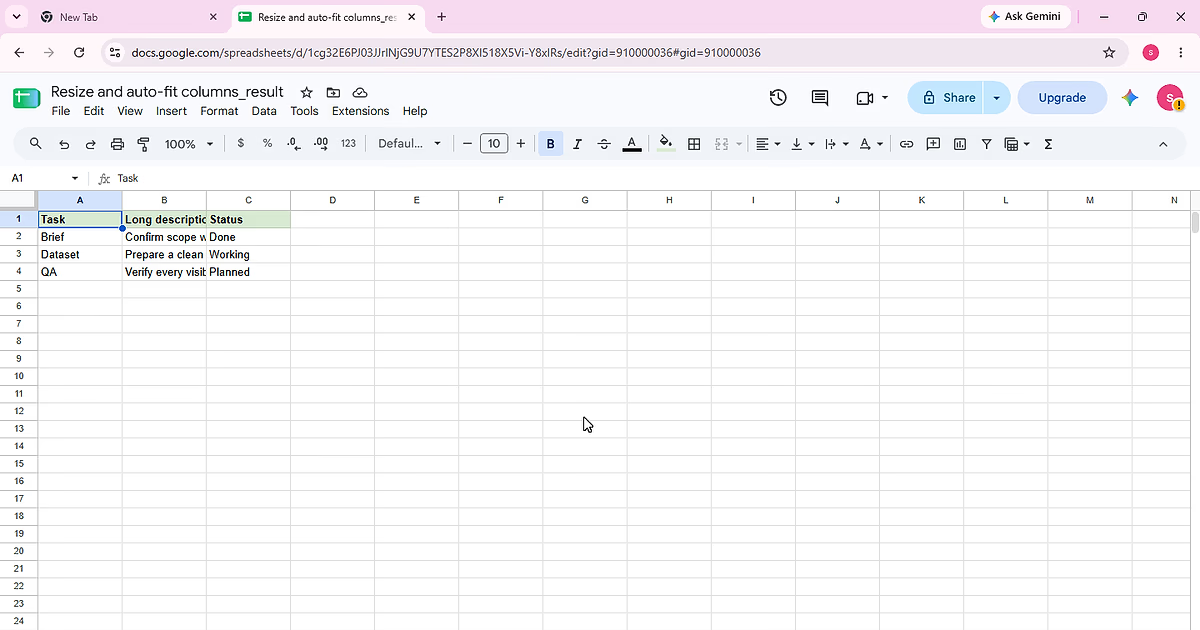
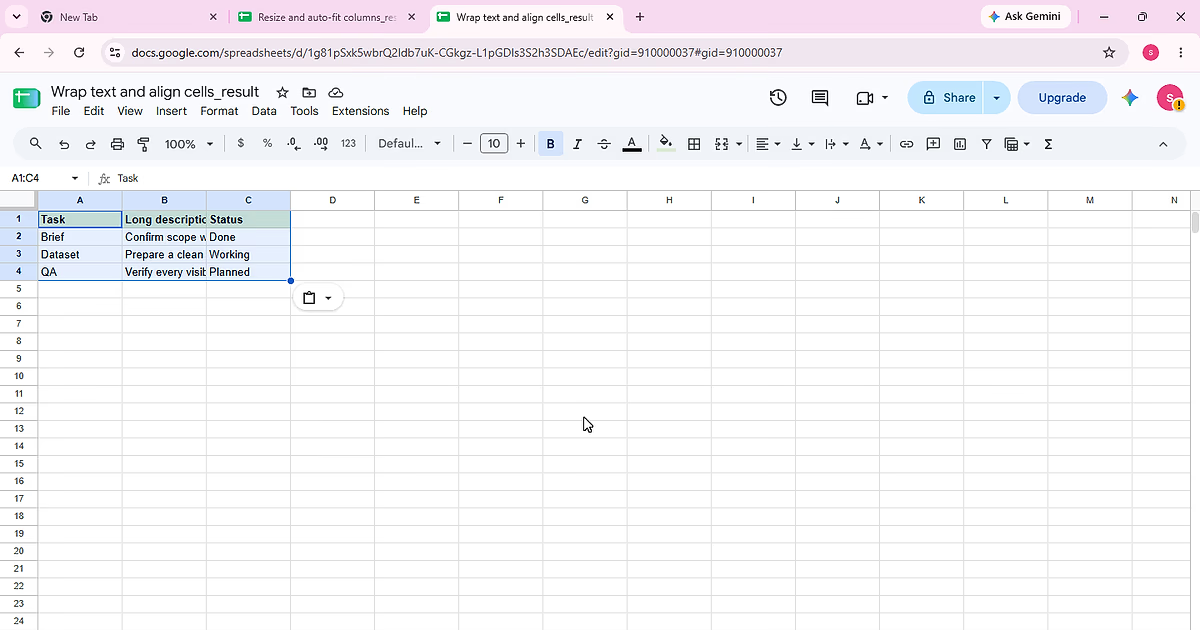
Complete “Resize and auto-fit columns” using the visible Task, Long description, Status sample so each action and the final state can be checked against the source data.
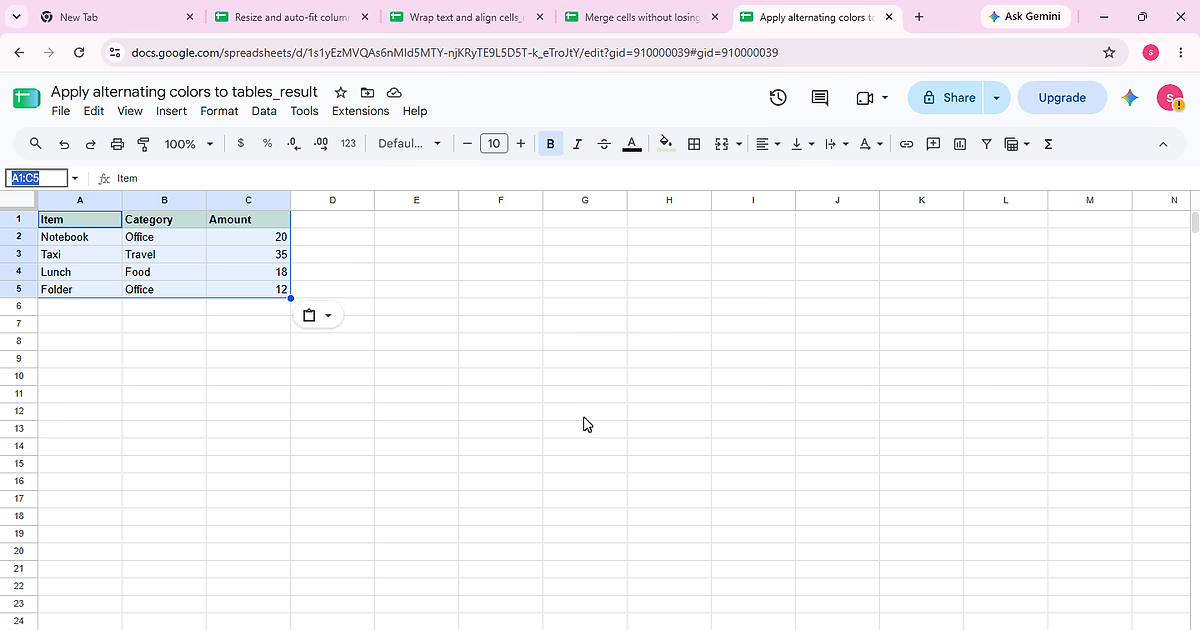
Complete “Apply alternating colors to tables” using the visible Item, Category, Amount sample so each action and the final state can be checked against the source data.
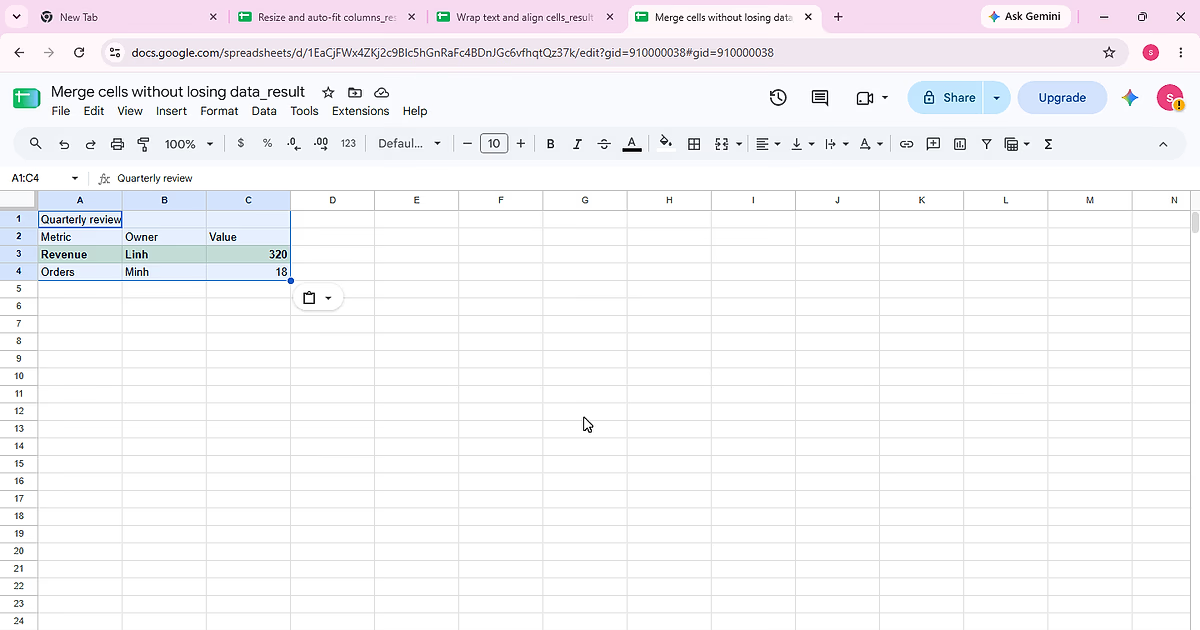
Complete “Merge cells without losing data” using the visible Quarterly review, , sample so each action and the final state can be checked against the source data.
Complete “Wrap text and align cells” using the visible Task, Long description, Status sample so each action and the final state can be checked against the source data.
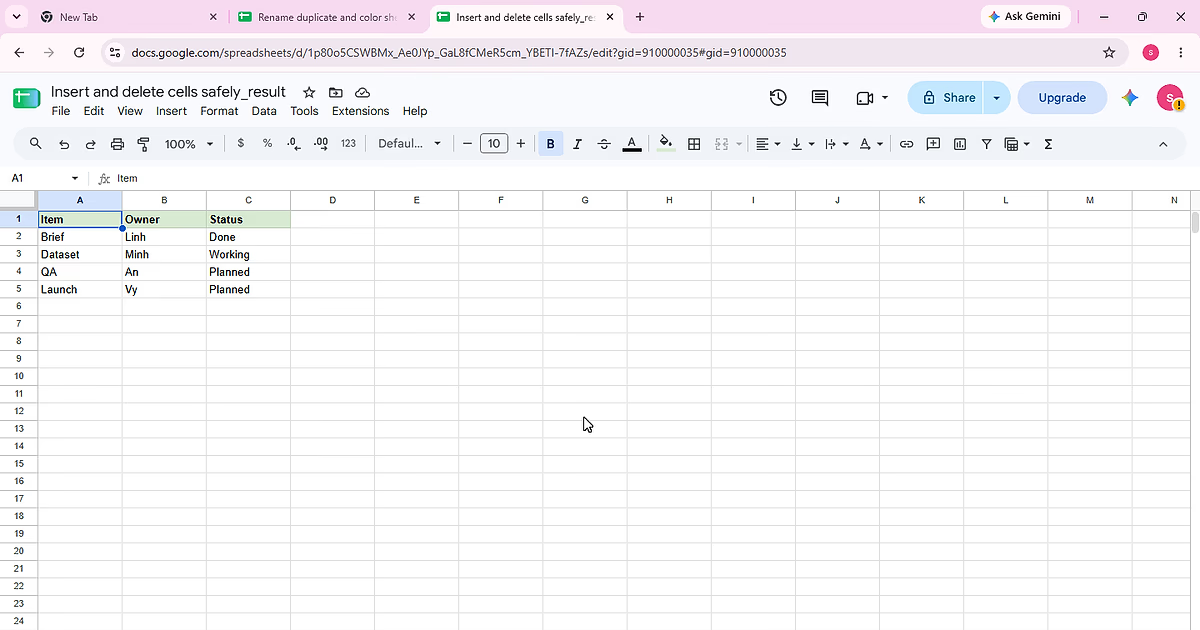
Complete “Insert and delete cells safely” using the visible Item, Owner, Status sample so each action and the final state can be checked against the source data.
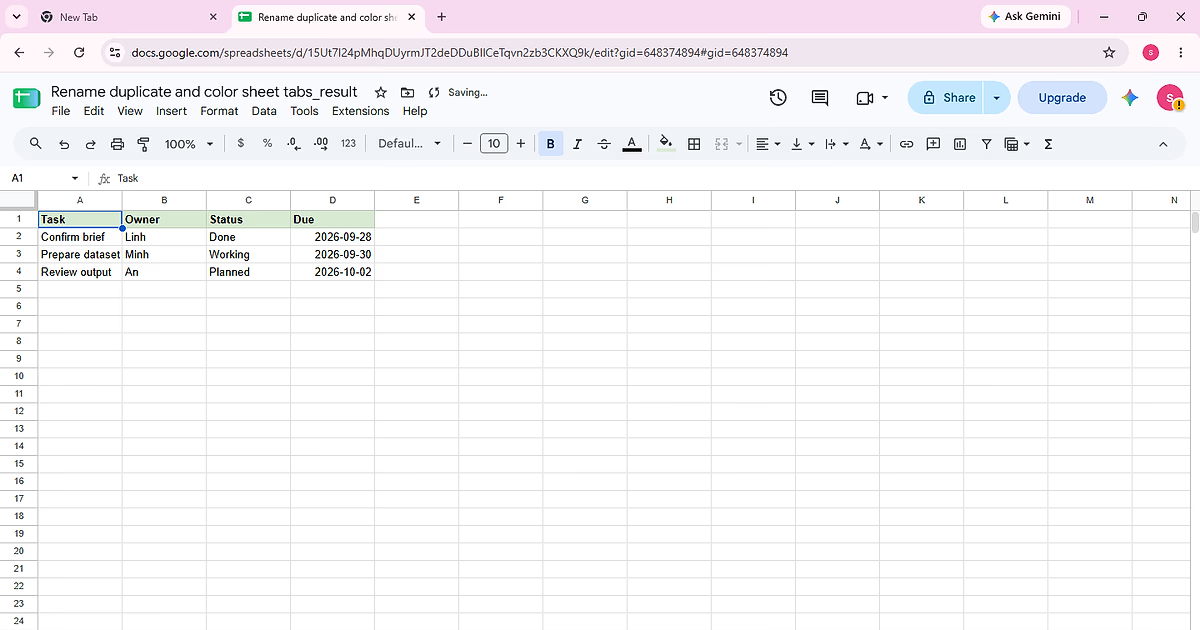
Complete “Rename duplicate and color sheet tabs” using the visible Task, Owner, Status, Due sample so each action and the final state can be checked against the source data.
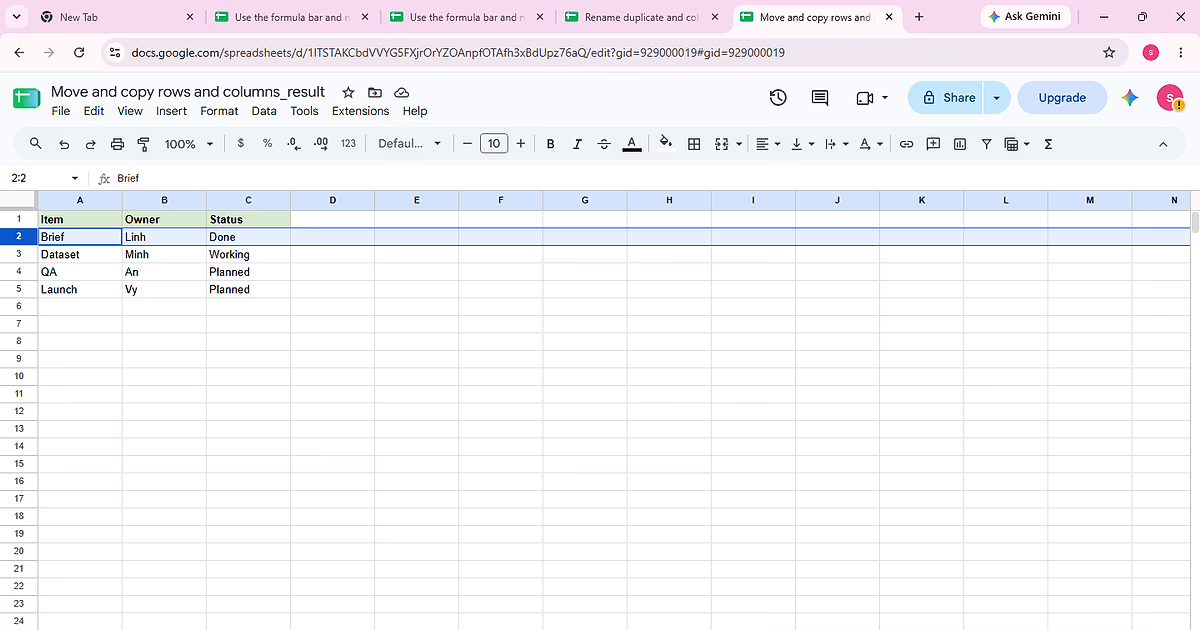
Complete “Move and copy rows and columns” using the visible Item, Owner, Status sample so each action and the final state can be checked against the source data.
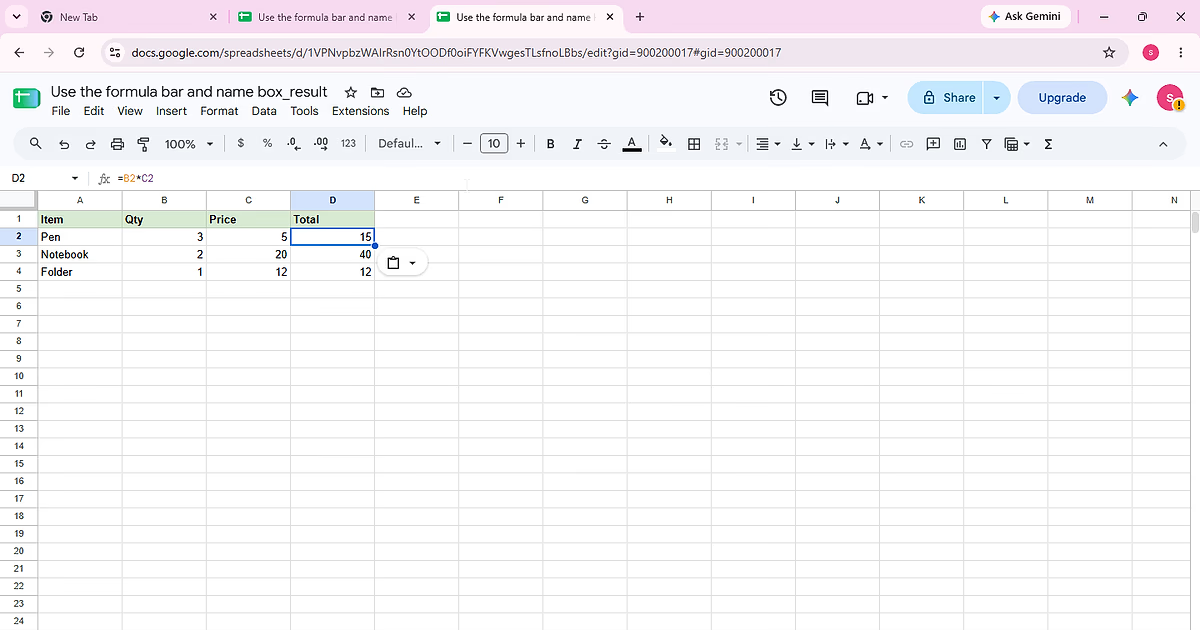
Complete “Use the formula bar and name box” using the visible Item, Qty, Price, Total sample so each action and the final state can be checked against the source data.
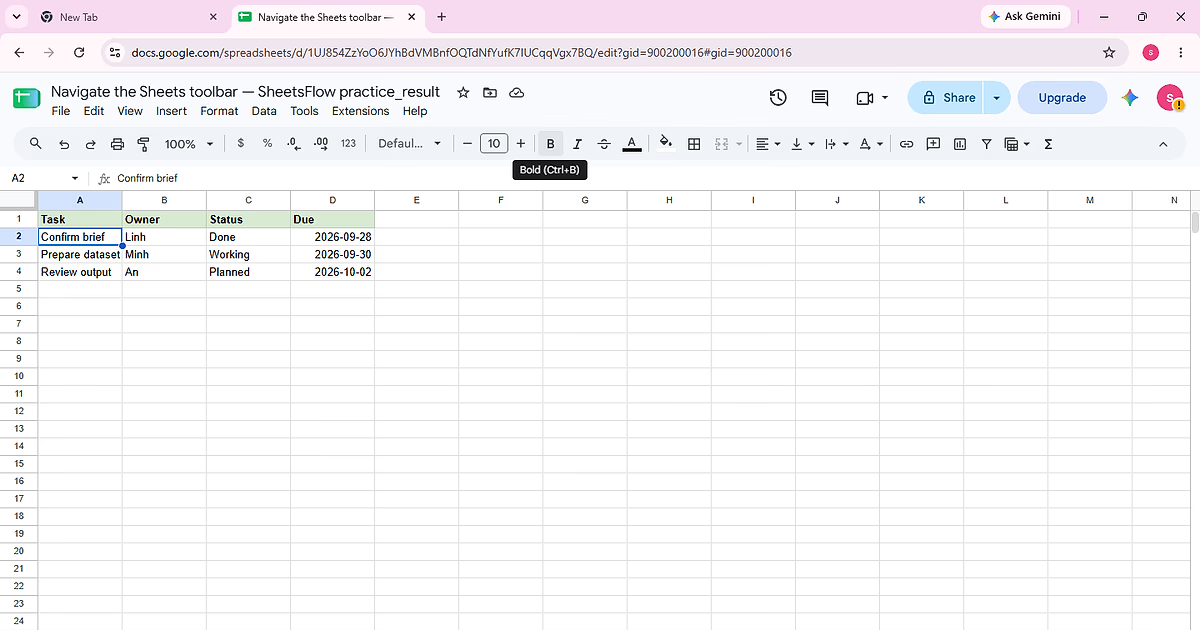
Complete “Navigate the Sheets toolbar” using the visible Task, Owner, Status, Due sample so each action and the final state can be checked against the source data.
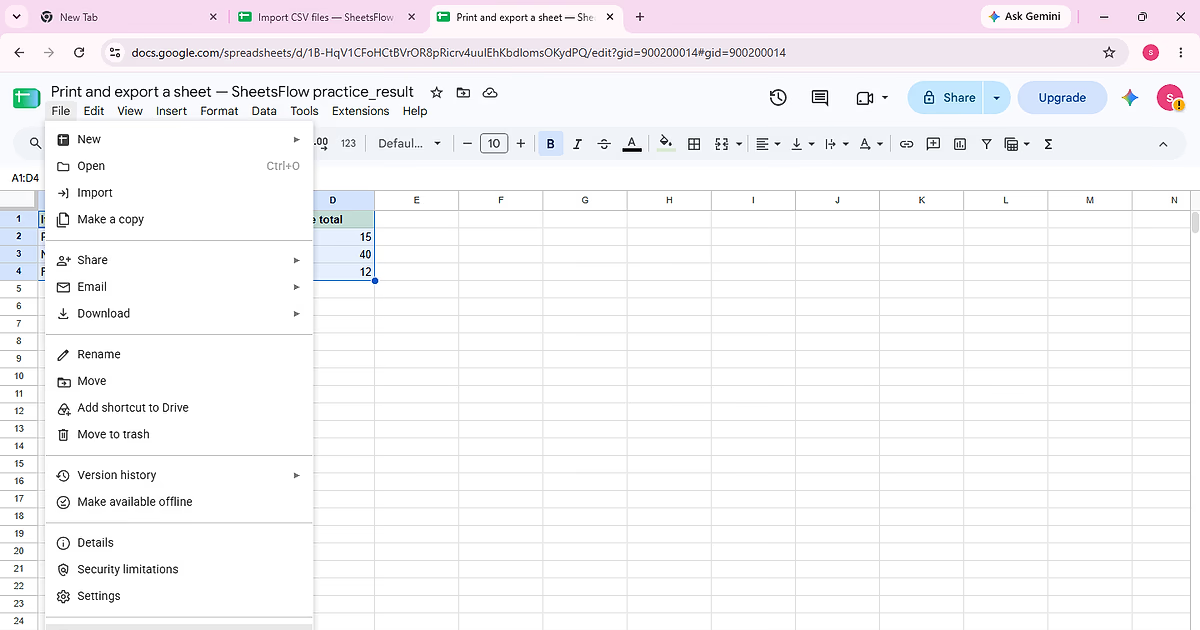
Complete “Print and export a sheet” using the visible Item, Qty, Unit price, Line total sample so each action and the final state can be checked against the source data.
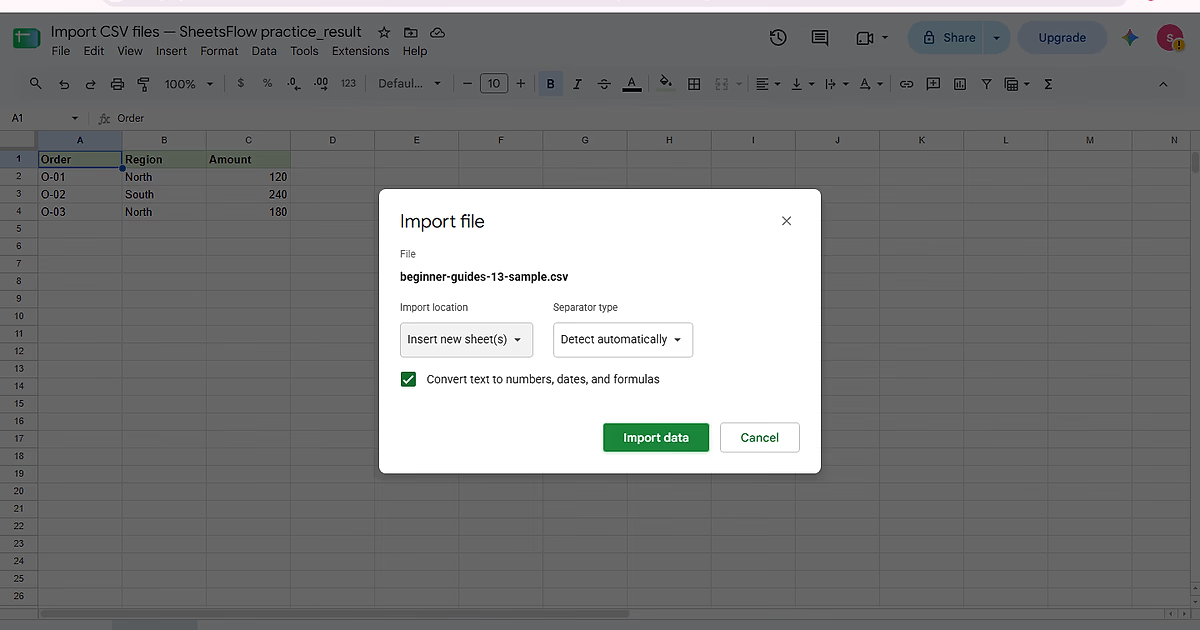
Import the CSV into separate Order, Region, Amount columns without overwriting the existing sheet or collapsing the file into one column.
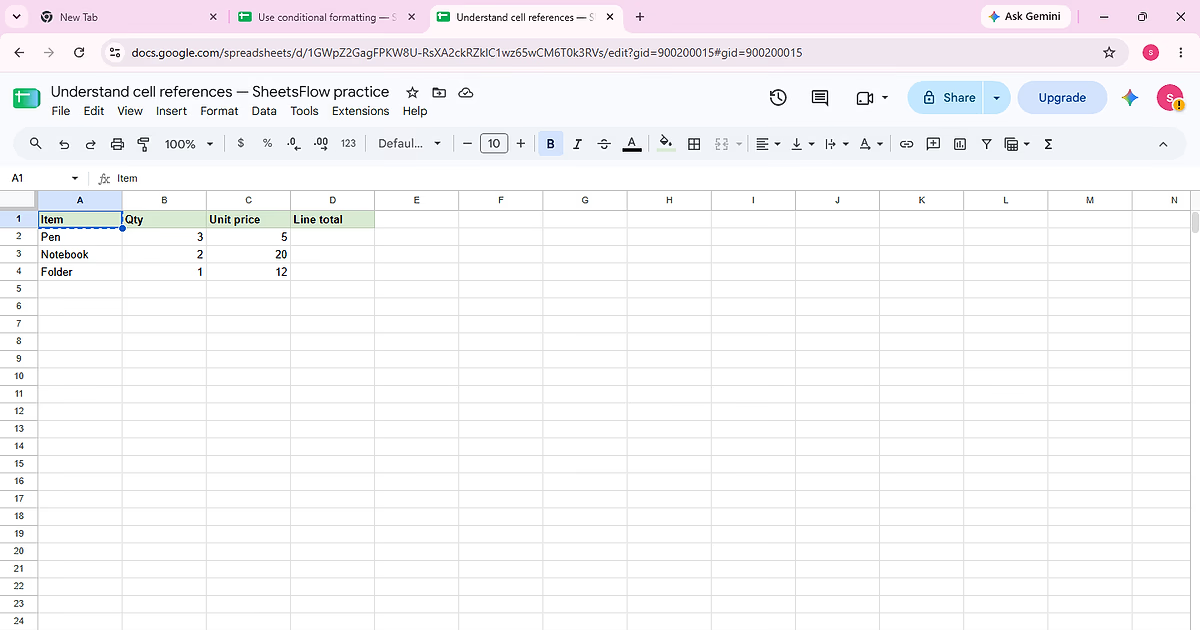
Complete “Understand cell references” using the visible Item, Qty, Unit price, Line total sample so each action and the final state can be checked against the source data.